
More apps (Composio)
For apps that are not built in, Felix uses Composio with your own Composio MCP key. Add the key on the Keys page first; without it, the More apps (Composio) section of the Apps page asks you to.
The list
Section titled “The list”More apps (Composio) lists the apps you can connect through Composio, plus any app you added or your agents asked for. Each row shows its status (Connected, Pending or Not connected) and its accounts.
- Connect opens Composio’s sign-in page in a new tab (if your browser blocks the tab, an Open sign-in link appears). When you come back, the page re-checks by itself. Each press starts a new sign-in, listed as a pending account until you finish it.
- Disconnect (next to an account) asks first, then removes that account for all your agents. It also removes a pending account you abandoned.
- An old Composio connection to an app that is now built in (Gmail, GitHub…) is listed at the end with only Disconnect; your agents no longer use it.
Add an app
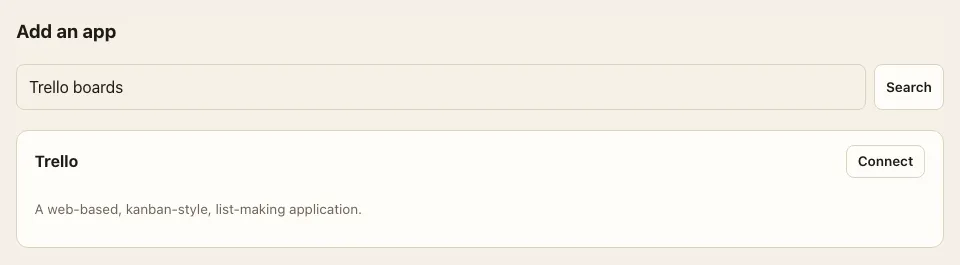
Section titled “Add an app”Add an app finds any app Composio offers. Type its name or what you want to do (“Trello boards”, “post on LinkedIn”) and press Search. Composio suggests apps with a short description; Connect starts the sign-in, and the app then stays in the list.
When an agent asks for an app
Section titled “When an agent asks for an app”When an agent needs an app that is not connected yet, it posts a Connect card (for example Connect Trello) in its chat:
- Connect Trello opens Composio’s sign-in page in a new tab. Sign in and allow access.
- Back in Felix, press I’ve connected. The agent checks the connection and continues; the card then reads “Connected. Your agent can use Trello.”
As with built-in apps, reading runs without asking and anything that changes things waits for your approval.