
Watch the screen and take control
Every agent has a real desktop with a browser. The Computer tab of the right panel shows a small, view-only preview of it.
The preview
Section titled “The preview”| The preview says | Meaning |
|---|---|
| Name is asleep — click to wake | The agent’s computer sleeps. Click to wake it, or just send a message. |
| Starting Name’s computer… | It is starting (a few seconds; the first start after an update takes longer). |
| All agent slots are in use right now — try again in a minute. | Waking was refused: no slot is free. Click again shortly. |
| All agent slots are busy — waiting | The agent’s task waits for a free slot (up to 10 minutes), then goes on by itself. |
| Restarting your computer… | Your computer restarts; the screen comes back once it is up. |
| Reconnecting… | The screen dropped and retries on its own. |
| Name’s computer has a problem… | Click to try again, or restart the computer from the Computer page. |
The small preview never wakes an agent and never keeps it awake.
Full screen: Watching
Section titled “Full screen: Watching”Click a live preview to open the screen full window in Watching mode. Nothing you do reaches the computer; the agent keeps working. Close (or Escape) leaves.
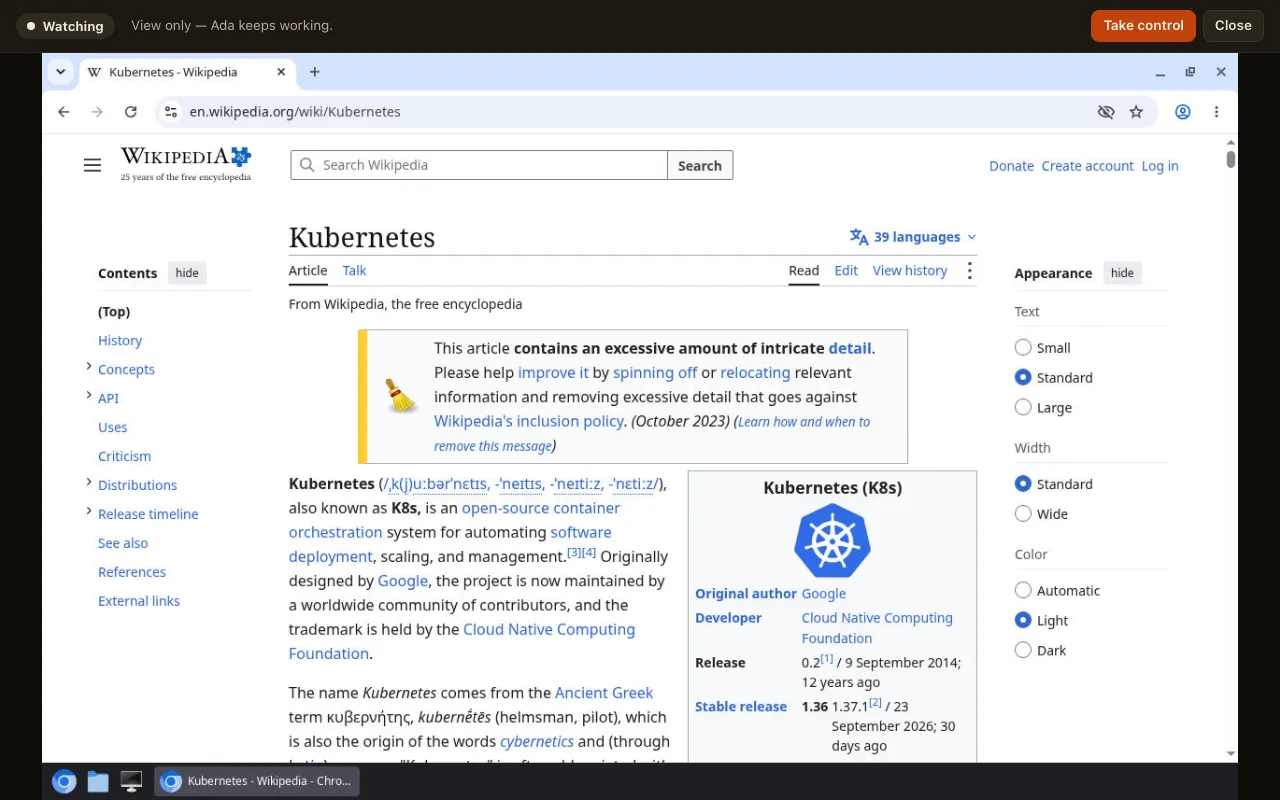
Take control
Section titled “Take control”Take control reconnects with your mouse and keyboard enabled: the badge reads You’re in control and the screen is outlined. I’m done gives control back and returns to watching. While you are in control, Escape goes to the computer: use Close to leave.
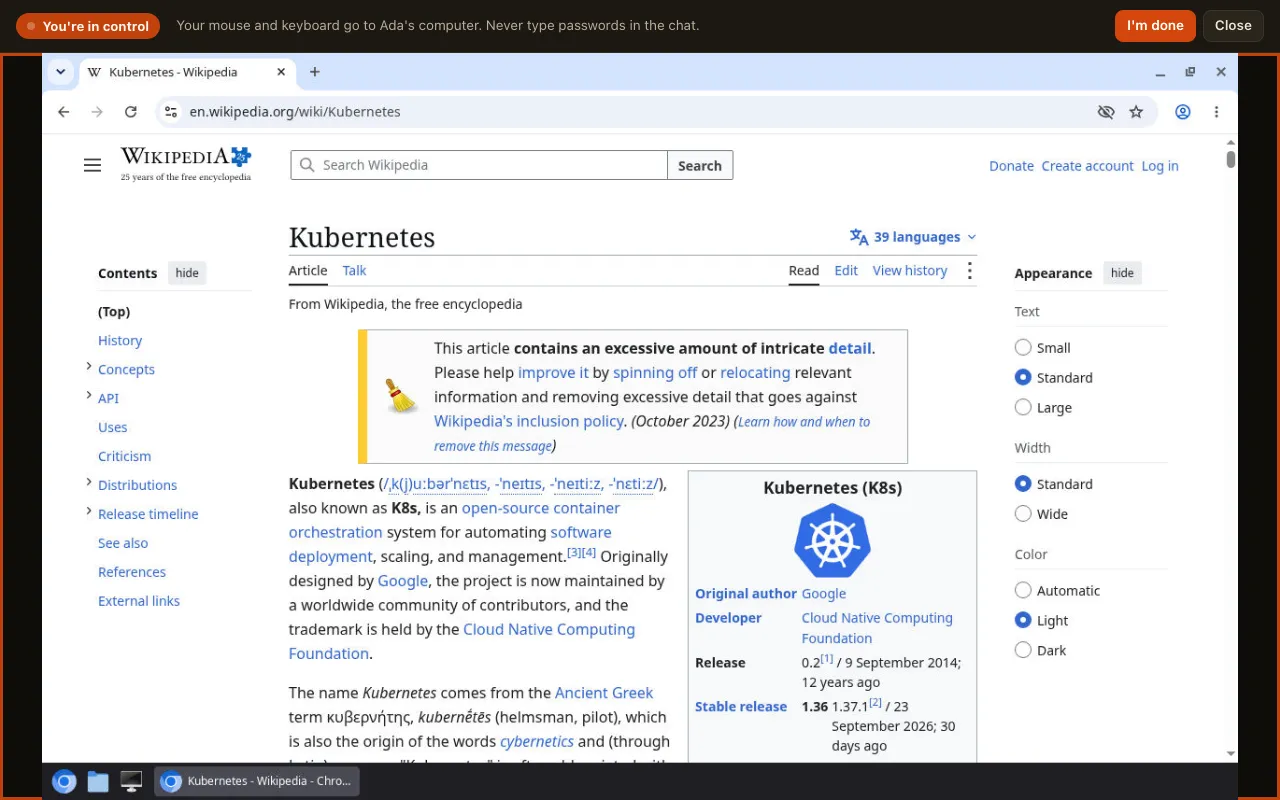
Opening the full screen wakes the agent if it sleeps and keeps it awake while it is open. Switching to another tab pauses it (“Paused while this tab is hidden”) and ends control; you are back to watching when you return.
The agent’s desktop
Section titled “The agent’s desktop”The browser fills the screen above a dock with three buttons: a new browser window, Files (a file manager on
/workspace; the agent’s home is under Home Folder) and Terminal (a shell in /workspace). Open windows are
listed next to them; a right-click on the background opens the same three. Windows have title bars (drag to move,
buttons to minimize, maximize and close; Alt+Tab switches). Take control first to use them.