
When the agent needs you
Some steps only you should do. The agent then pauses, posts a card in its chat, and its status becomes Waiting for you (its cat raises a paw).
Action needed: take over a step
Section titled “Action needed: take over a step”Typically signing in to a website. The Computer · Action needed card shows the agent’s reason.
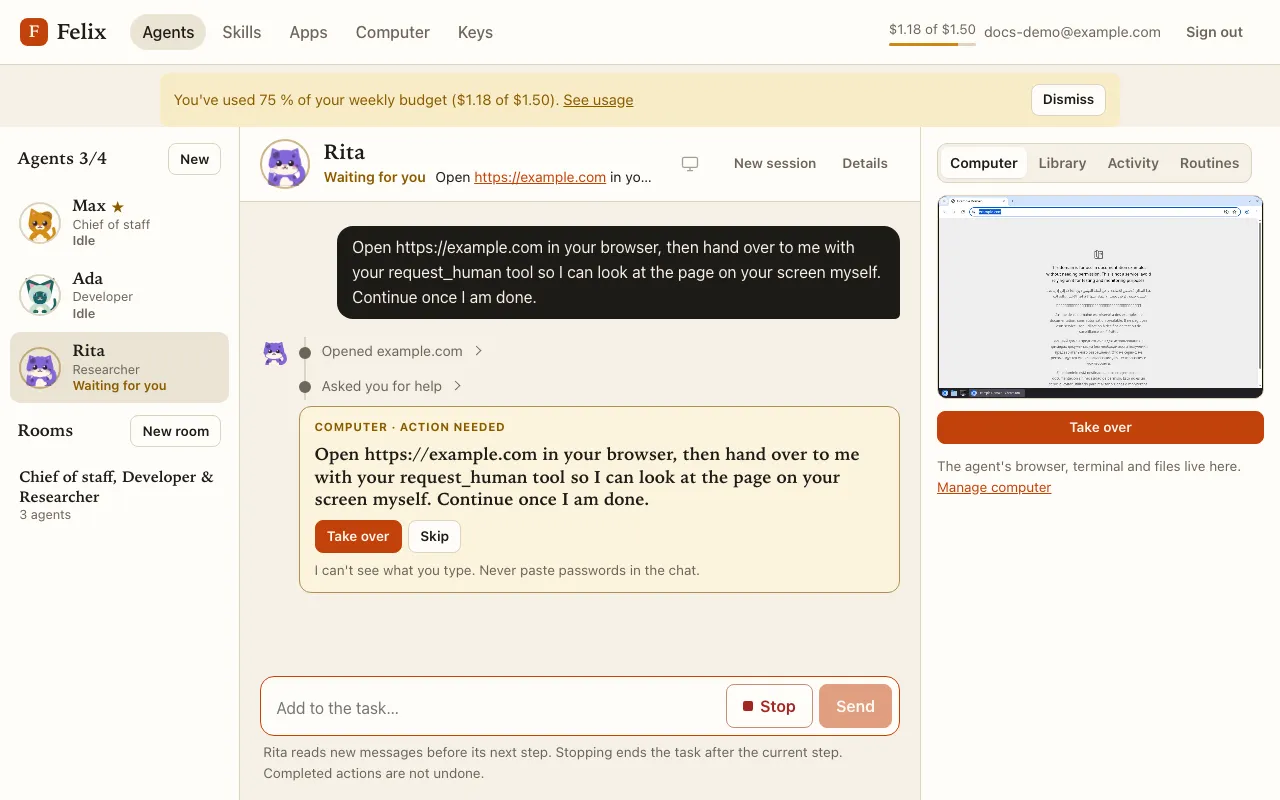
- Take over opens the agent’s screen full window in control mode. Do the step there, then press I’m done: the agent continues where it stopped.
- Skip tells the agent to go on without it.
- Replying in the chat also lets it continue: it reads your reply.
If the agent’s computer went to sleep meanwhile, the task keeps waiting: reply in the chat, or press Take over (the full screen wakes it).
A credential is needed
Section titled “A credential is needed”If a task needs an SSH key or a GitHub token the agent does not have, it posts an SSH key needed or GitHub token needed card with its reason.
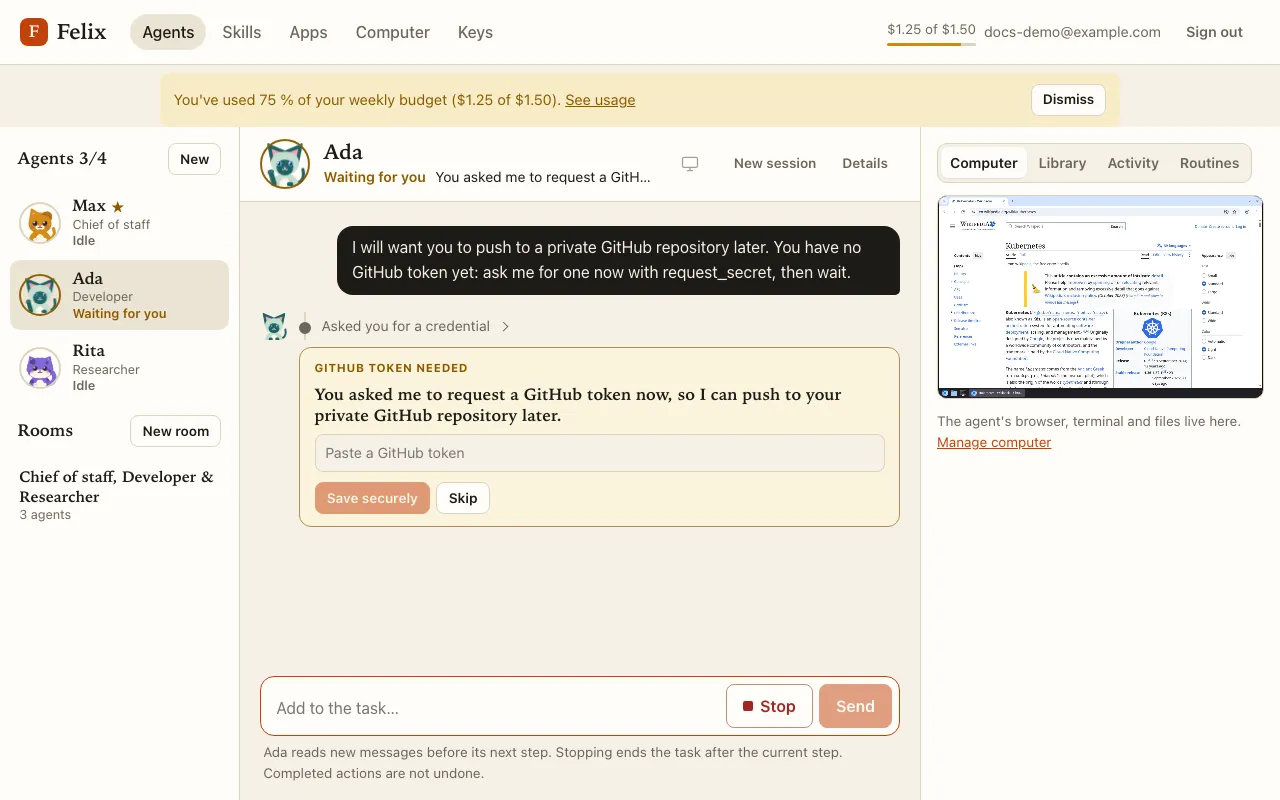
- Paste the value into the masked field and press Save securely. For an SSH key you can press Generate a key for me and Copy the public key shown, to add it where it should be accepted.
- Or press Skip.
The value goes only to Felix, is stored encrypted and installed on that agent’s computer; the card then reads “Saved securely — never shown to your agent”. See Credentials.
How long the agent waits
Section titled “How long the agent waits”- A credential request waits up to 24 hours; then the task ends and you can send a message to continue.
- An Action needed card in a normal chat waits until you answer.
- In a routine’s unattended run, every wait expires after 60 minutes and the card says when (“Expires at 10:42 — this routine runs without you”).
If you send a chat message instead of answering a credential request, the request is skipped and the agent reads your message. To be told when an agent waits for you, see Notifications.